
If you’re suddenly seeing the “550 5.7.1 [ESA] Sender Blocked” error when sending emails, don’t panic.
This error is a protective measure from MailChannels, a popular email delivery network, designed to stop spam or compromised accounts from abusing the system.
In this post, we’ll break down why your email got blocked, how to fix it, and what hosting providers can do to restore normal email delivery.
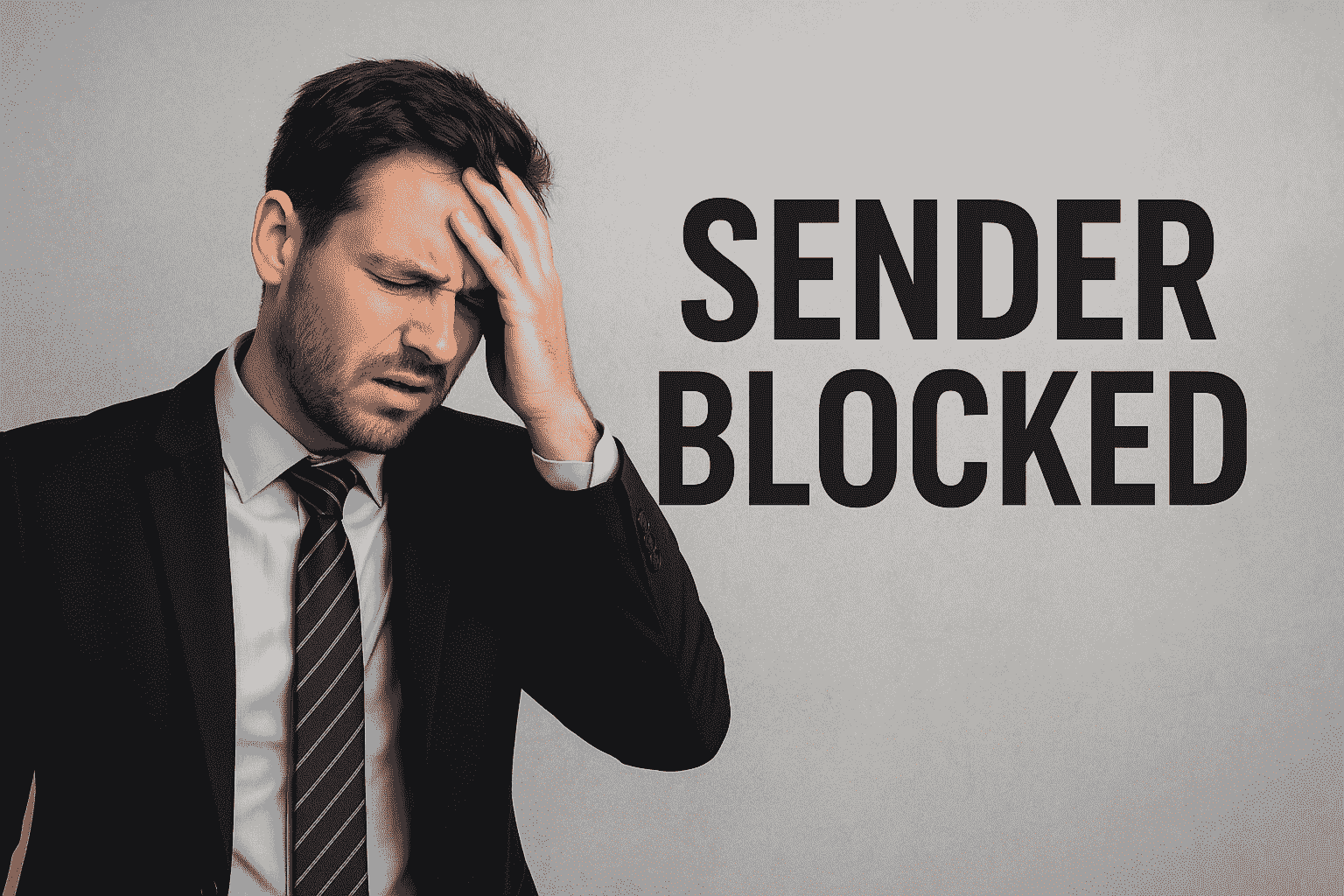
What Does “550 5.7.1 [ESA] Sender Blocked” Mean?
This message indicates that MailChannels has detected abusive or suspicious behavior from your email account.
Common triggers include:
-
Sending bulk or spam-like emails
-
High spam complaint rates
-
Emails sent to many invalid addresses
-
Repeated sending after temporary blocks
Once several temporary blocks occur, MailChannels issues a permanent block — which must be manually removed before you can send emails again.
Tip: You can prevent future blocks by using verified sender domains, SPF/DKIM records, and limiting bulk campaigns to trusted recipients.
How to Unblock Your Account (For End Users)
If your personal or business email has been blocked, take these steps to secure your account and restore access:
1️⃣ Change Your Password Immediately
Use a strong password with at least 8 characters, combining uppercase, lowercase, numbers, and symbols. Avoid reusing old passwords.
2️⃣ Update Your Operating System
Install the latest updates for Windows, macOS, or Linux to patch known vulnerabilities.
3️⃣ Run a Full Antivirus Scan
Malware or spam bots may be sending emails from your system without your knowledge.
Use a reputable antivirus tool and remove any suspicious software.
If your account remains blocked after these steps, contact your web hosting provider (like Tested Technologies) for direct assistance.
️ Need help fast?
Contact Tested Technologies SupportFor Hosting Providers: How to Unblock a User’s Account
If you manage hosting for clients and use MailChannels, there are two main recovery methods:
Option 1: MailChannels Console
Log into your MailChannels Console
Search for the blocked sender
Click the “Report Issue” icon
If the account has been blocked with this exact message, it will be automatically unblockedOption 2: Notification Email Link
Each time MailChannels blocks an account, it sends a notification to your configured admin email.
This message contains a direct unblock link — or you can automate it by sending a POST request to that URL.
Enable Notifications (Recommended for Service Providers)
To receive instant alerts whenever an account is compromised or blocked:
-
Log into your MailChannels Console
-
Enable “Receive Notifications”
-
Follow this guide:
How to Enable Compromised Account Notifications⚠️ Important Reminder
If you unblock an account without securing it first, it will likely get blocked again.
MailChannels only allows one automatic unblock per account every 30 days, so make sure you clean up the source issue first.Need Expert Help?
If you’re still having trouble or your MailChannels block won’t lift, you can contact:
support@mailchannels.com or info@testedtechs.comFinal Thoughts
The 550 5.7.1 [ESA] Sender Blocked error can be frustrating, but it’s ultimately a safeguard to keep email systems clean and trusted.
By securing your account, maintaining proper authentication records, and monitoring outgoing email activity, you can prevent future disruptions.At Tested Technologies we specialize in email hosting, server management, and deliverability optimization — ensuring your emails reach the inbox, not the spam folder. Need ongoing support? Explore our Email Hosting & Security Services